How to Crop Images into Shapes with insMind to Create Stunning Visuals
Try out the Shape Image tool of insMind today to enhance and bring a unique touch to the pictures.

Guest Column Anil Baswal, Bio and Archives--October 11, 2024
Lifestyles | Comments | Reader Friendly | Subscribe | Email Us

With the help of advanced photo editors, users can shape pictures to enhance their creativity in producing visual content. Tools with shape templates can process and manipulate images faster than traditional methods. This efficiency is valuable in professional settings where large volumes of visual content must be managed quickly. Due to its advanced capabilities, insMind can be used to shape images and add new artistic styles.
Part 1. Let's Get Started with The Best Photo Shape Editor - insMind
The best all-in-one image editor is insMind, as it allows users to crop image into shape that they upload to the server. Its advanced features ensure that users can use various shapes according to their needs. They can adjust the fill color with a custom color palette to match their content aesthetic.
Using insMind allows users to add color, gradient, or pattern to the PNG image after they add a shape. Moreover, users can add shadows to the cut-out picture, giving it a unique touch. insMind's Crop Image into Shape tool allows users to adjust the eccentricity from 0 to 100. If you do not like the options for shapes provided by the tool, you can always generate new custom shapes.
Part 2. Instructional Guide on Using insMind to Shape Images
Apart from understanding the basics of using insMind's photo shape editor, let us look into the steps you need to take to carry out this process. In this section, you will find a quick and easy-to-understand guide that will help you edit and enhance your images online.
Step 1. Get Access to insMind's Crop Image into Shape Online Tool
As you begin the process, get access to insMind's main webpage and go to the Crop Image into Shape tool. Then, click on the "Upload a Photo" button to add the image to which you want to add shapes.

Step 2. Add the Mask Shape to the Image
Once your image is uploaded to the server, you are redirected to an editing panel. Select the "Mask" tab from the right toolbar and use the "Circle" option to create a circle-shaped image.
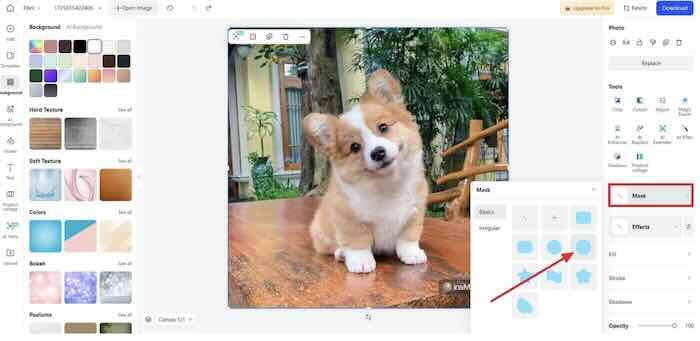
Step 3. Adjust the Eccentricity and Fill Color
Moving on, adjust the "Eccentricity" of the shape you have added to adjust the image accurately. Then, you can click the "Fill" tab to add a custom color to the picture based on your specifications.
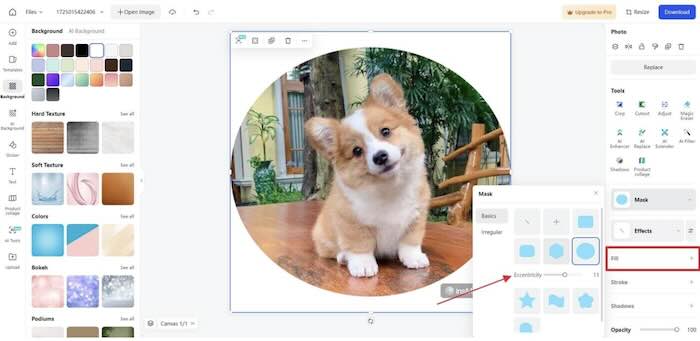
Step 4. Choose the Format and Download the Shape Image to Your Device
Finally, after you have made changes to the image, click on the "Download" button at the top right corner of the screen. Afterward, choose the image format and quality and press the "Download" button again to save the edited picture to your device.

Part 3. Ultimate Benefits of Using insMind for Shaping Images
Now that we understand how insMind crops images to shape let's look into the benefits you can gain from using this AI-powered tool.
- User-Friendly Interface: insMind offers an easy-to-use platform that makes image shaping accessible even to those without advanced technical skills.
- Creative Flexibility: It allows users to explore various creative possibilities, such as transforming photos into digital sketches, adding artistic effects, or merging different visual styles.
- Time Efficiency: The AI-driven processes automate many time-consuming aspects of image shaping, such as background removal or color correction, to ensure time efficiency.
- High-Quality Output: This tool is designed to produce high-resolution images that meet professional standards.
Part 4. Discovering Possibilities Beyond Shape Images in insMind
To proceed from discussing the benefits you can gain from utilizing this cutting-edge image editor, dive into the other features of insMind.
Silhouette Maker
With the help of the silhouette marker on insMind, you can effortlessly generate an eye-catching silhouette with a good background.

Curved Text Generator
Wrap your text using different curved effects on your pictures and give your logos and posters a visually appealing look.

Photo to Line Drawing
insMind allows users to generate line art images from their regular pictures, and it provides users with high-quality and artistic results.
Conclusion
To summarize this article, you can effortlessly add shape images through insMind. We have shown the steps you need to take as you continue this process to ensure a seamless experience. Try out the Shape Image tool of insMind today to enhance and bring a unique touch to the pictures.
Anil writes on Health, Wellness and Lifestyle
View Comments
Items of notes and interest from the web.